Help & how-to

Every important step in duoly — walked through with screenshots. If you don't find what you're looking for: contact support.

1. Getting started: name, mode, questionnaire

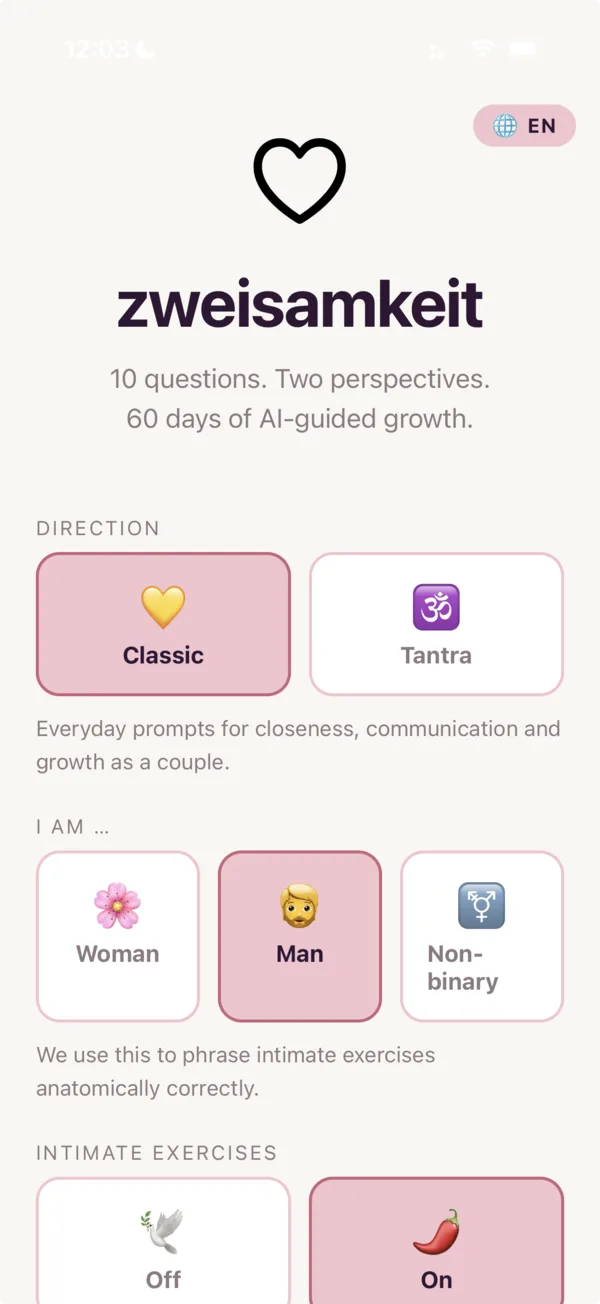
When you open duoly for the first time you land on the home screen. Pick three things:

  1. Direction: Classic (everyday, communication, closeness) or Tantra (breath, presence, energy).
  2. Intimate exercises: Off by default. Only turn on when you're actually ready — the app won't ask you again later.
  3. Body profile: Woman / Man / Non-binary. We use this only to phrase intimate exercises anatomically correctly.

Then enter your first name and tap "Start questionnaire →". The questionnaire branches — around 10 questions, adapted to your answers. It takes about 5 minutes.
↑ Back to top

duoly home screen with mode selection, intimate-exercises toggle, body profile and name field

2. Create and share the partner code

After the questionnaire you reach the partner-linking screen. Two paths:

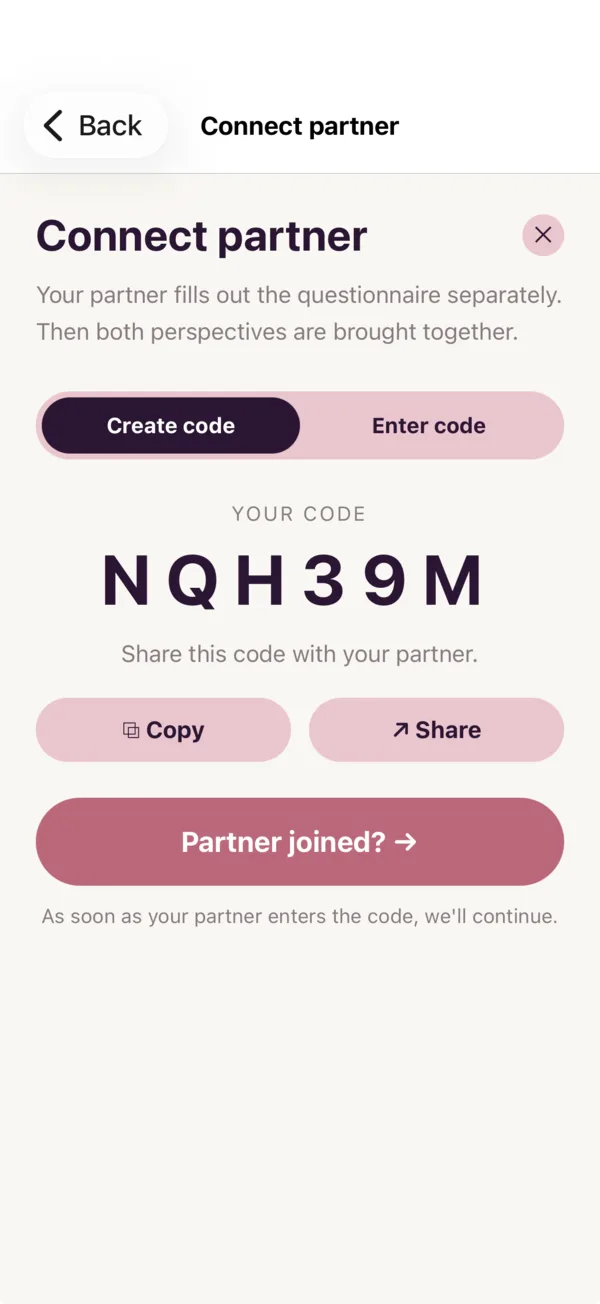
  • Create code: You receive a 6-character code (e.g. UJMWNV). Tap "⧉ Copy" or "↗ Share" to send it to your partner via messenger, SMS or AirDrop.
  • Together / Apart: Choose at the top whether you're physically together or apart — the app generates prompts that fit the situation.

As soon as the other person has entered the code, tap "Partner joined? →". From that point on your 60-day journey begins.

↑ Back to top

Screen for creating the partner code with the generated example code NQH39M

3. Enter a code you received

If your partner has already created a code, you don't need to make one yourself:

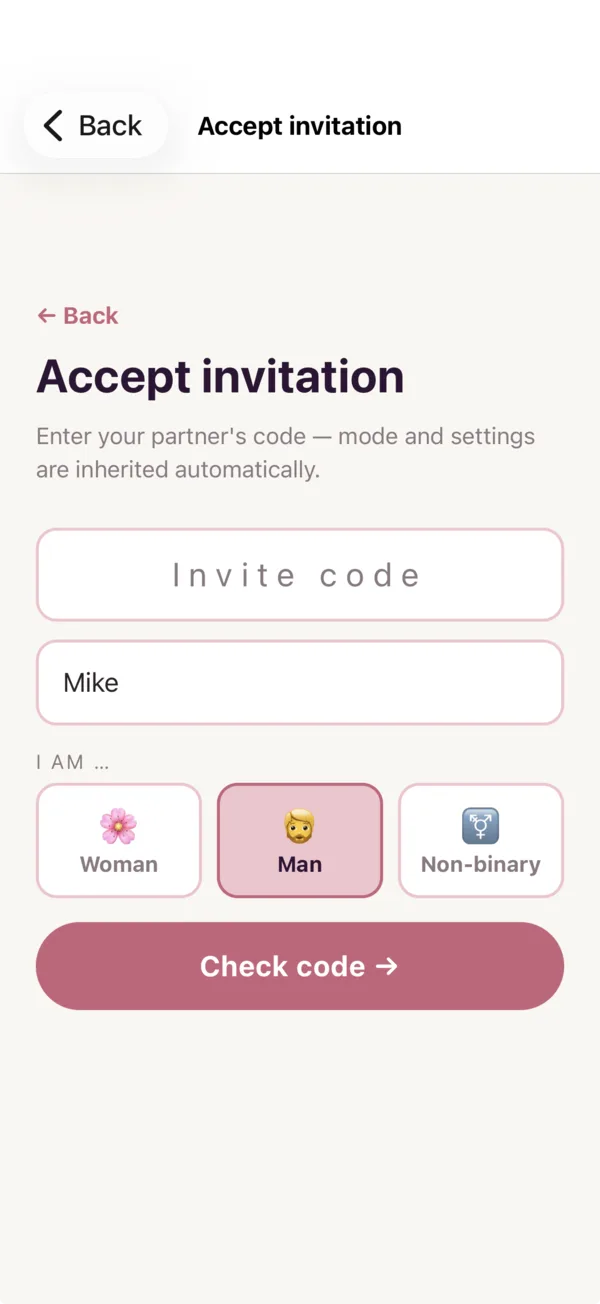
  1. On the home screen, scroll to the bottom and tap "I have an invite code".
  2. Enter your first name and the 6-character code.
  3. Tap "Check code →" — the app briefly shows which mode and intimacy setting are being inherited.
  4. Tap "Start questionnaire →" and fill out your own questionnaire. After the last step the session is connected automatically.

Important: both of you must complete the questionnaire before the daily AI task is generated. Until then you'll see "Waiting for partner".

↑ Back to top

Screen for joining, with first-name and code fields

4. Switch modes or end the journey

The mode (Classic/Tantra) and intimacy setting are fixed at the start of a session. To switch:

  1. On the daily-task screen tap the ✕ icon in the top right.
  2. In the "End the journey?" dialog confirm with "Yes, end it". Completed days remain in the database.
  3. You'll land back on the home screen and can re-pick mode, intimacy and Together/Apart.

Note: ending the journey also invalidates the partner code. Starting a fresh round means you need a new code.

↑ Back to top

5. Generate a different task for today

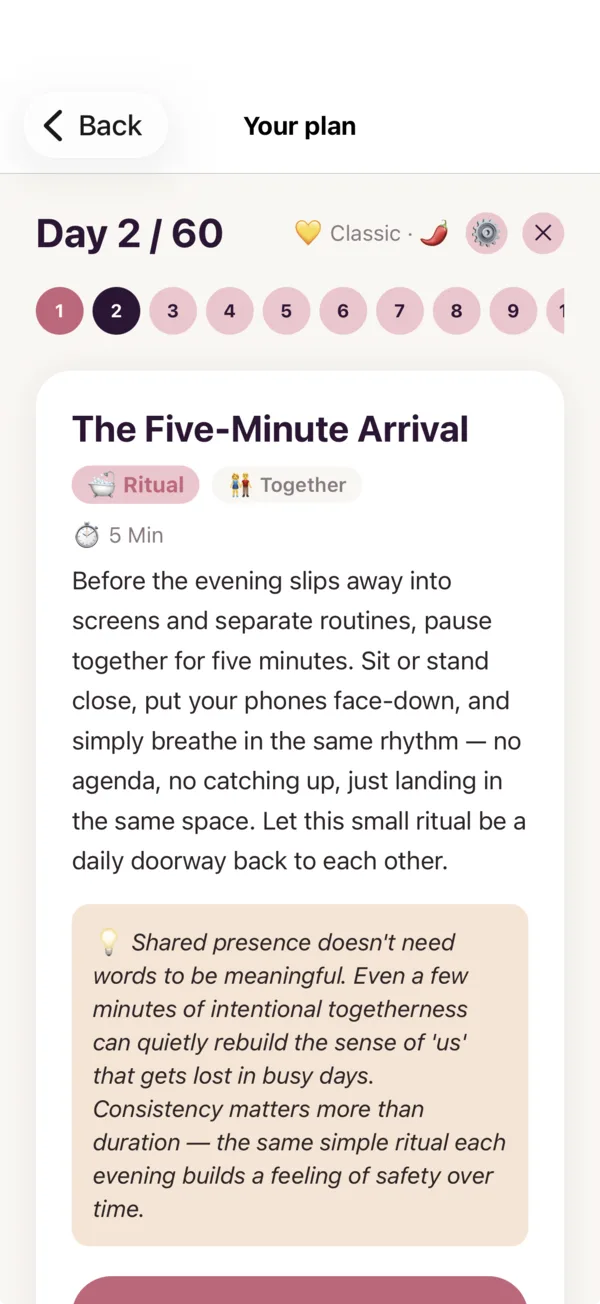
If today's task doesn't fit (no time, wrong mood, or you happened to do it already): below the task you'll find "↻ Different task". Tap it to let the AI generate a fresh task for the same day. The old one is discarded.

You can do this multiple times on the same day. Each regeneration is tokenized, but unlimited within your subscription.

↑ Back to top

Daily task with title, description, tip and the Done and Different task action buttons

6. Manage or cancel the subscription

duoly itself has no access to payment data — everything runs through your Apple or Google account:

  1. Open Settings (⚙️ in the top right of the daily-task screen).
  2. Section "Subscription" → tap "Manage subscription".
  3. The app opens the native subscription management directly. There you can:
  • Cancel the plan (continues until the end of the current period, no refund).
  • Switch between Classic / Tantra / Bundle.
  • Update the payment method.

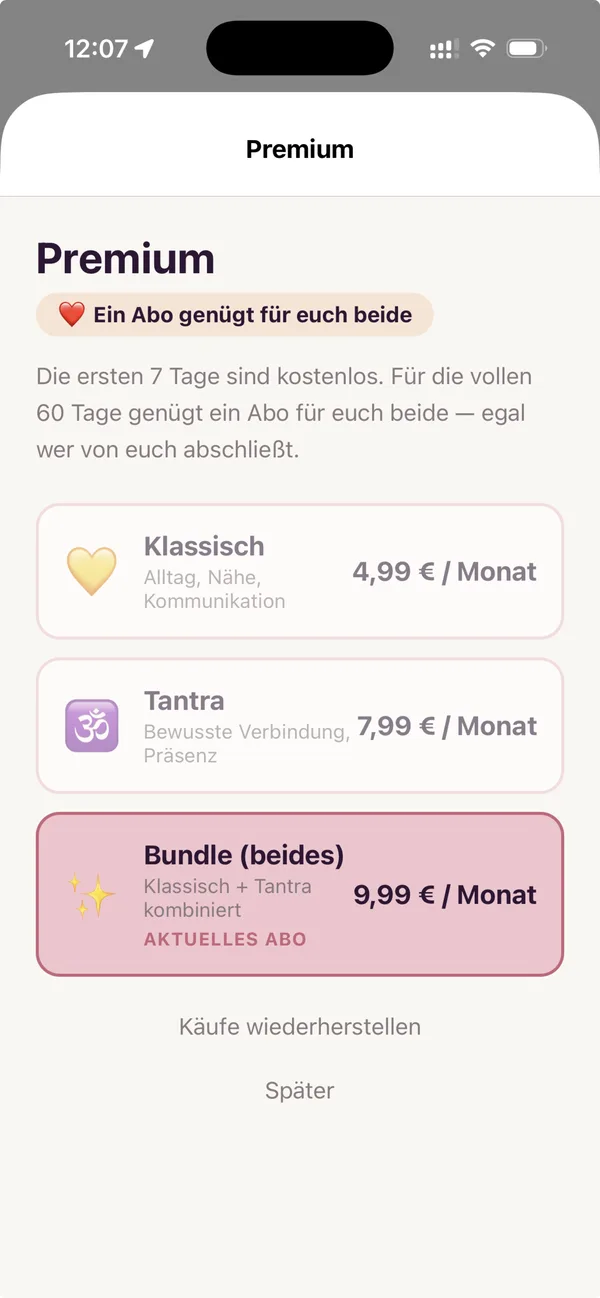
The first 7 days are free. Cancel within that window and no charges apply.

↑ Back to top

Paywall screen with Classic, Tantra and Bundle options and the note about 7 free days

7. Restore purchases on a new device

If you install duoly on a new device or reinstalled the app:

  1. Open the app and set yourself up again with your usual first name.
  2. Open Settings → section "Subscription".
  3. Tap "Restore purchases".

Requirement: the same Apple ID or Google account you originally subscribed with. If restore finds nothing but a subscription is active: contact support — we'll reconcile it manually.

↑ Back to top

8. Set the daily reminder

So you don't miss today's task, duoly can push you once a day:

  1. Settings → section "Notifications".
  2. Toggle "Daily reminder" on. The first time, iOS/Android asks for permission — tap "Allow".
  3. Below it, "Time" appears. iOS shows an inline spinner; Android opens the system time picker.

If you previously denied permission, you need to enable it in the OS settings (iOS: Settings → duoly → Notifications · Android: App info → Notifications) before the toggle takes effect.

↑ Back to top

9. Change the app language

duoly is available in German and English. To switch:

  1. Settings → section "Account".
  2. Tap "Language" (shows "Deutsch" or "English" currently).

The switch is immediate. The daily AI tasks are generated in the new language starting with the next call.

↑ Back to top

10. Open the Tantra glossary

In Tantra mode Sanskrit terms like Shiva, Shakti, Yoni, Lingam, Prana, Chakra appear in the tasks. The in-app glossary explains them briefly:

  • From a Tantra session: tap the 📖 icon in the top right of the daily-task screen (only visible when the active session is in Tantra mode).
  • Always available: Settings → Support & Legal → "Tantra glossary".

Longer version: Tantra glossary on duoly.app/en/blog with 16 terms and more context.

↑ Back to top

11. Delete the account

If you want to delete duoly and your data completely:

  1. Settings → section "Support & Legal".
  2. Tap "Delete account". duoly opens the deletion form on duoly.app.
  3. Fill out the form and confirm via email.

After confirmation we delete your account, your first name, questionnaire answers and all session data within 30 days. An active subscription must be canceled separately in the Apple or Google account — we have no access there.

↑ Back to top

Nothing matched?

Write to us directly: contact support. The in-app Support screen automatically attaches technical diagnostics so we can reproduce your issue faster.